What is Two-Factor Authentication (2FA) and Why It Matters in 2026
Introduction
Here’s an uncomfortable truth: for most people and businesses in 2026, security still starts and ends with a password. If that password is weak, reused across sites, or ever typed into a fake login page, it does not matter how strong your firewall is. An attacker who has your password can log in as you in seconds — into email, Microsoft 365, banking, social media, and cloud services.
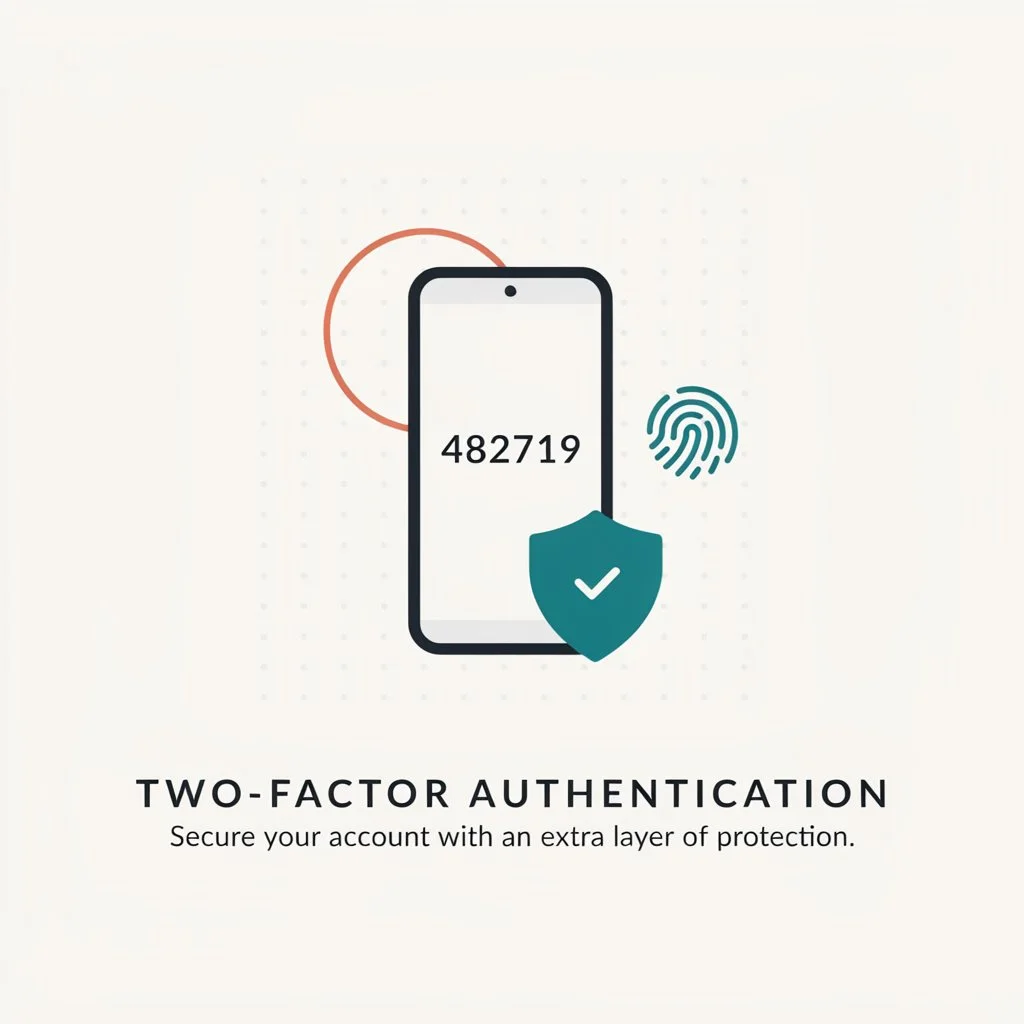
Passwords alone are broken. They get stolen in data breaches, guessed through brute force, phished through fake login pages, and purchased on the dark web for pennies. Passwords get reused, guessed, stolen, and shared — making them one of the weakest links in modern security.
Two-factor authentication — commonly called 2FA — is the single most impactful security upgrade available to any individual or business today. It’s simple, free on most platforms, takes minutes to set up, and immediately makes your accounts dramatically harder to hack. This guide explains exactly what 2FA is, how it works, the different types available, which accounts to protect first, and how to set it up today.
What is Two-Factor Authentication?
Two-factor authentication requires a second proof of identity beyond your password when you log in. Even if a scammer steals your password, they cannot access your account without the second factor.
Two-factor authentication is a login method that requires two separate forms of identity verification before granting access to an account. Typically that’s something you know — your password — plus something you have, like a code from your phone, or something you are, like a fingerprint.
Think of it like a bank vault with two separate locks. A thief might steal one key — your password — but without the second key, the vault stays locked. That second key is what 2FA provides.
2FA is essential to web security because it immediately neutralizes the risks associated with compromised passwords. If a password is hacked, guessed, or even phished, that’s no longer enough to give an intruder access. Without approval at the second factor, a password alone is useless.
You’ve almost certainly used 2FA already without realizing it. If a website has ever sent a numeric code to your phone for you to enter to gain access, you’ve completed a multi-factor transaction. That six-digit code texted to you when logging into your bank is 2FA in action.
How Does 2FA Work — Step by Step?
The 2FA login process adds one extra step to your normal login flow:
Step 1 — You visit a website or app and enter your username and password as normal.
Step 2 — Instead of gaining immediate access, the service prompts you for a second verification factor.
Step 3 — You provide the second factor — a code from your authenticator app, a text message code, a fingerprint scan, or a hardware key tap.
Step 4 — The service verifies both factors match and grants you access.
2FA uses an authentication process to ensure that the two factors are valid and linked to their account. When you enable 2FA, the service shares a secret with your authenticator app or device. The site checks your password at each login, then verifies the second factor — such as a time-based code or push approval — to confirm it’s you.
The entire process adds roughly five seconds to your login. Those five seconds make unauthorized access exponentially harder.
The Three Types of Authentication Factors
The U.S. National Institute of Standards and Technology defines three types of authentication factors: Knowledge — something you know, such as a password, PIN, or passphrase. Possession — something you have, like a smartphone with an authenticator app, a passkey, or a USB security key. Inherence — something you are, such as biometrics including a fingerprint, facial features, or retina scan.
True 2FA combines factors from at least two of these categories. A password plus a fingerprint is genuine 2FA — two different factor types. A password plus a security question is not true 2FA — both are knowledge factors and both can be stolen together.
Types of 2FA – From Weakest to Strongest
Not all 2FA is equal. Understanding the differences helps you choose the right method for each account.
SMS Text Message Codes
The most common and widely available form of 2FA. When you log in, a six-digit code is sent to your phone number via text message.
SMS 2FA is better than no 2FA, but it’s no longer considered strong protection for sensitive accounts. SIM-swap attacks — where a hacker convinces your carrier to transfer your number to a device they control — are a documented threat. For email, cloud consoles, and financial systems, use an authenticator app, hardware key, or cloud SSO instead. SMS is acceptable for lower-risk accounts where no better option exists.
The bottom line on SMS 2FA: use it when it’s the only option available, but upgrade to stronger methods for your most sensitive accounts.
Authenticator Apps — The Sweet Spot for Most Users
Authenticator apps like Google Authenticator, Microsoft Authenticator, and Authy generate time-based one-time passwords (TOTP) directly on your device. These codes refresh every 30 seconds and are generated locally — they’re never sent over a network and cannot be intercepted through SIM-swapping.
OTP-based verification remains one of the most widely adopted approaches in 2026. Its strength lies not in complexity but in accessibility, speed, and practicality.
For the vast majority of individuals and businesses, authenticator apps represent the ideal balance of security and convenience. They’re free, work offline, and are significantly more secure than SMS without requiring any additional hardware.
Push Notifications
Some services — particularly enterprise platforms like Duo Security — send a push notification to your registered phone when you attempt to log in. You simply tap “Approve” or “Deny” in the app to confirm the login attempt.
Push notifications are convenient and add an extra layer of awareness — you’ll immediately know if someone is attempting to log into your account because you’ll receive an unsolicited approval request. However, they require internet connectivity and are vulnerable to “MFA fatigue attacks” where hackers send repeated push requests hoping you’ll eventually approve one by mistake.
Hardware Security Keys
Hardware keys like the YubiKey are physical devices that plug into a USB port or tap against an NFC reader. They use the FIDO2/WebAuthn standard and are completely immune to phishing — the key cryptographically verifies the legitimate website before authenticating, making it impossible to use on fake login pages.
The type of second factor matters. Enabling SMS verification on an admin account and calling it “secured” is a false sense of security for high-risk accounts. What matters is that you’re using more than one factor and that at least one of them is phishing-resistant.
Hardware keys are the most secure 2FA method available and are strongly recommended for anyone with elevated security needs — system administrators, executives, journalists, activists, and anyone who handles particularly sensitive data.
Passkeys — The Future of Authentication
Passkeys are the newest authentication technology and represent a genuine evolution beyond both passwords and traditional 2FA. Possession factors now include passkeys — cryptographic credentials that replace both your password and second factor simultaneously, stored securely on your device and authenticated through biometrics.
Major platforms including Google, Apple, Microsoft, and hundreds of websites now support passkeys. When you log in with a passkey, you simply verify with Face ID or a fingerprint — no password to steal, no code to intercept. Passkeys are phishing-resistant by design and are rapidly becoming the authentication standard of 2026.
Why Passwords Alone Are No Longer Enough
The scale of the password problem in 2026 is genuinely staggering. Billions of username and password combinations from historical data breaches are freely available on the dark web. Password cracking tools powered by AI can test billions of combinations per second. And human nature being what it is, password reuse remains endemic despite years of security warnings.
An attacker who has your password can often log in as you in seconds — into email, Microsoft 365, banking, social media, and cloud services.
Even strong, unique passwords are vulnerable to phishing attacks where users are tricked into entering their credentials on convincing fake websites. The password arrives at the attacker’s server in real time, completely intact, regardless of its strength. 2FA defeats this attack vector entirely — a stolen password without the second factor is useless.
2FA immediately neutralizes the risks associated with compromised passwords. Without approval at the second factor, a password alone is useless to an attacker.
Where to Enable 2FA First — Priority Order
Not all accounts carry equal risk. Here’s the order in which to enable 2FA, starting with the most critical:
1. Your Primary Email Account — Most Important
Turn on 2FA for your main email account first. Your email is the master key to your digital life — most account recovery flows send password reset links to your email. Control of your email means control of virtually every other account you own. Protect it first, protect it with the strongest 2FA available.
2. Banking and Financial Accounts
Any account connected to money — banking, investment platforms, payment apps like PayPal or Venmo — should have 2FA enabled immediately. Financial fraud is the most immediately damaging consequence of account compromise.
3. Work Accounts — Microsoft 365, Google Workspace
Turn on 2FA for banking, Microsoft 365, or Google Workspace and any accounts that hold important business or personal data. Work accounts often provide access to sensitive company data, colleague information, and financial systems that extend far beyond your personal accounts.
4. Social Media Accounts
Compromised social media accounts are used to scam your contacts, spread misinformation, and conduct phishing attacks against your followers. Enable 2FA on Instagram, Facebook, X, LinkedIn, and any platform where your identity and audience matter.
5. Cloud Storage and Password Managers
Your cloud storage may contain sensitive documents, photos, and files. Your password manager — if compromised — could expose every account you own simultaneously. Both deserve the strongest 2FA available.
6. Everything Else
Work through remaining accounts progressively — shopping sites, streaming services, gaming accounts, and any platform that stores payment information or personal data.
How to Set Up 2FA on Major Platforms
Google / Gmail
Settings → Security → 2-Step Verification → Get Started → Choose your preferred method (authenticator app recommended)
Apple ID
Settings → [Your Name] → Sign-In & Security → Two-Factor Authentication → Turn On
Microsoft / Outlook
Account.microsoft.com → Security → Advanced Security Options → Two-Step Verification → Turn On
Facebook / Instagram
Settings → Security → Two-Factor Authentication → choose method
Banking
Every bank implements 2FA differently — look for “Security Settings” or “Login Verification” in your account settings, or contact your bank directly.
2FA for Businesses — Why It’s Non-Negotiable
Two-factor authentication ensures information is much more secure than traditional passwords by adding a layer of security. For most businesses, this is a good idea that protects both sensitive data and builds trust with customers.
For businesses, the stakes of account compromise extend far beyond individual inconvenience. A single compromised employee account can expose customer data, financial records, and intellectual property — triggering regulatory consequences, reputational damage, and direct financial losses.
The gap between “we have 2FA” and “we have 2FA where it actually matters” is one of the most consistent security blind spots across hundreds of companies. Many businesses enable 2FA on paper but leave critical systems — cloud consoles, email admin accounts, financial platforms — still protected by passwords alone.
Best practices for business 2FA implementation include enforcing authenticator app 2FA rather than SMS for all sensitive systems, prioritizing email and cloud platforms as the highest-risk accounts, establishing a clear recovery process for employees who lose access to their second factor, reviewing 2FA coverage at least twice per year to catch gaps, and moving toward hardware security keys for administrators and anyone with elevated system access.
Common 2FA Questions Answered
Will I get locked out if I lose my phone?
Every platform that supports 2FA also provides backup recovery codes when you first enable it. Make sure you have backup codes or a recovery method saved somewhere safe. Store these codes in a secure location — printed and stored physically, or saved in your password manager. Never store them only on your phone.
Is 2FA really necessary if I have a strong password?
Yes. Even genuinely strong passwords are vulnerable to phishing attacks where you’re tricked into entering them on a fake site. 2FA defeats this attack category entirely — the phished password is useless without the second factor.
Does 2FA slow down the login process significantly?
Users joining a new platform expect verification to be quick and intuitive. Long setup steps or unfamiliar security flows increase abandonment. In practice, authenticator app 2FA adds roughly five seconds to a login — a negligible inconvenience for meaningful security improvement. Most platforms also offer “remember this device” options that skip 2FA on trusted devices for 30 days.
Is SMS 2FA better than nothing?
Yes — significantly better. SMS 2FA is better than no 2FA. If SMS is the only option a platform offers, enable it. Just upgrade to an authenticator app for your highest-value accounts wherever possible.
What’s the difference between 2FA and MFA?
Two-factor authentication is a subset of multi-factor authentication. 2FA specifically requires exactly two factors. MFA can require two or more. In practice, most businesses use the terms interchangeably, and the distinction rarely matters. What matters is that you’re using more than one factor.
2FA Limitations — What It Doesn’t Protect Against
Being honest about 2FA’s limitations is just as important as understanding its benefits.
Real-time phishing attacks — Sophisticated phishing sites can intercept both your password and your 2FA code in real time, relaying them to the real site before the code expires. This is why phishing-resistant 2FA — hardware keys and passkeys — is important for the highest-risk accounts.
Malware on your device — If your device has malware, an attacker may be able to read your authenticator codes or intercept your session after you’ve authenticated. Device security and 2FA work together — neither replaces the other.
MFA fatigue attacks — Repeated push notification requests hoping you’ll approve one accidentally are an emerging attack vector. If you receive an unexpected 2FA push request you didn’t initiate, always deny it and change your password immediately.
Social engineering — A determined attacker might call your carrier, impersonate you, and SIM-swap your number to bypass SMS 2FA. This is why authenticator apps are preferable to SMS for sensitive accounts.
The Bottom Line — 2FA is the Single Biggest Security Upgrade You Can Make Today
Passwords just don’t cut it anymore. That’s why so many businesses and users are turning to two-factor authentication — a simple way to add an extra layer of protection to every login.
Enabling 2FA on your most important accounts takes under 10 minutes total. It costs nothing. And it immediately makes those accounts dramatically harder to compromise — even if your password is stolen, guessed, or phished.
You don’t have to change everything at once to benefit from 2FA. Turn on 2FA for your main email account. Turn it on for banking, Microsoft 365 or Google Workspace, and any accounts that hold important business or personal data. Make sure you have backup codes saved somewhere safe. From there, extend 2FA to other accounts over time.
Start today. Start with your email. Work through the priority list. And know that every account you protect with 2FA is an account that a stolen password alone can never compromise.
That’s not a small thing — in 2026, it’s everything.
Enable 2FA on your email right now — it takes five minutes and could be the most important five minutes you spend on your digital security all year.